
Navigate this article
Introduction
If you are grinding competitive FPS games like Counter-Strike 2 or Valorant on a 60Hz or even 144Hz monitor, you are putting yourself at a serious disadvantage. In today’s high-level lobbies, where split-second reactions decide every duel, hardware matters more than ever, and a 240Hz display is quickly becoming the new standard. The good news is that what used to be expensive esports-grade performance is now widely accessible, but choosing the right monitor is still tricky due to misleading specs and marketing. In this guide, we break down the best 1080p 240Hz gaming monitors under $300, focusing on real performance so you can upgrade with confidence.
Quick Picks
| Monitor | Key Specifications | Amazon | Ideal For |
|---|---|---|---|
| ViewSonic XG2431 | 24" Fast-IPS, 240Hz, 0.5ms, HDR400 | Buy | Pure Motion Clarity |
| MSI MAG 245F X24 | 24" Rapid IPS, 240Hz, 0.5ms, AI Vision | Buy | Multi-Monitor Setup |
| Dell SE2426HG | 23.8" IPS, 240Hz, 5ms, 99% sRGB | Buy | Budget Conscious |
| ASUS TUF VG249QM5A | 24" Fast-IPS, 240Hz, 0.3ms, ELMB | Buy | Fastest Response |
| SAMSUNG Odyssey G4 | 25" IPS, 240Hz, 1ms, HDR10 | Buy | Larger Screen |
The Top 1080p 240Hz Monitors Under 300 Dollars
Extensive community testing, professional hardware reviews, and passionate user feedback have highlighted several standout monitors in the current market. Each of these displays offers a unique blend of speed, color accuracy, and overall value. None of them are absolutely perfect. Here is the unfiltered breakdown of the best hardware available for your setup.
1. ViewSonic XG2431 (24-Inch)
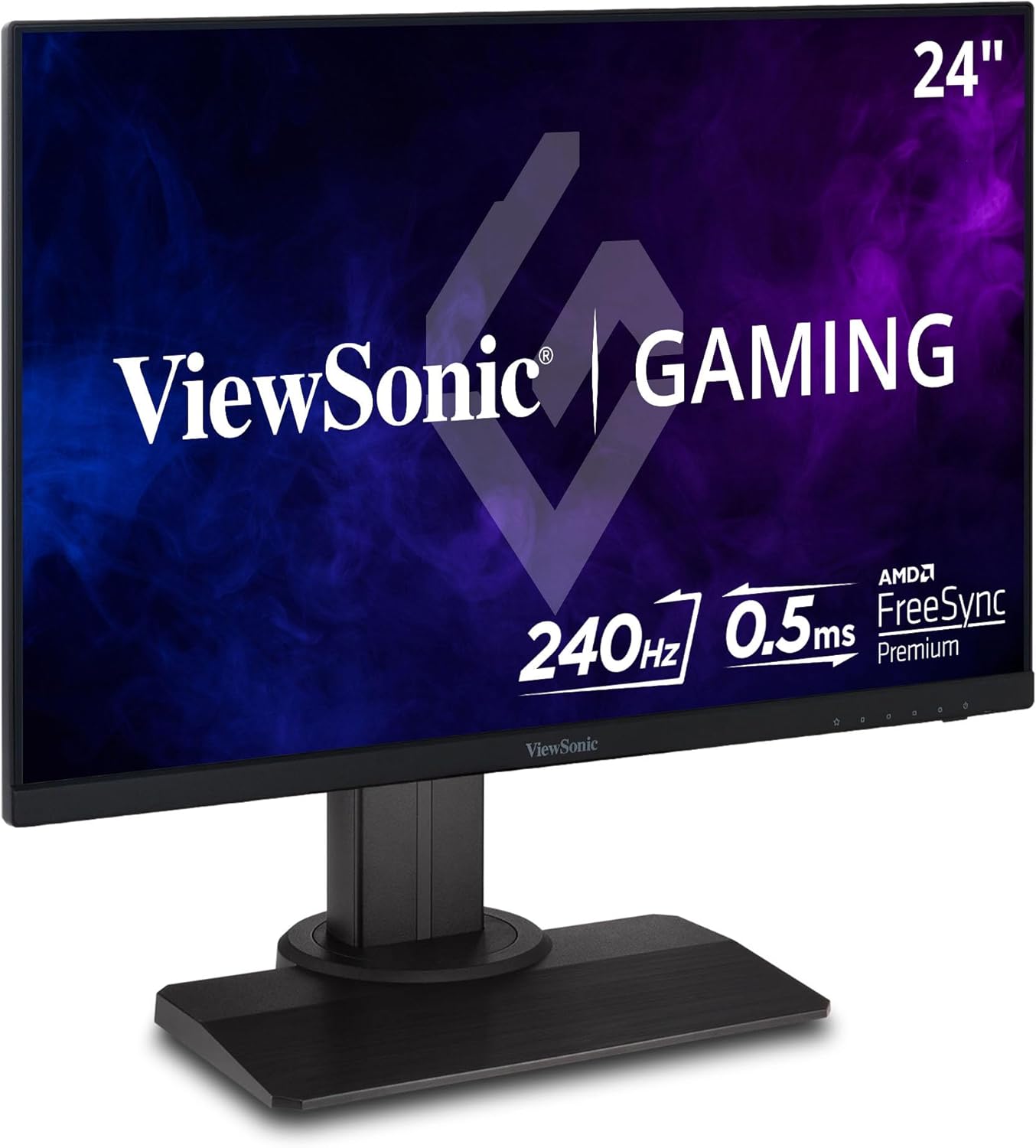
The ViewSonic XG2431 is built for pure speed and motion clarity. Utilizing Fast-IPS technology, it manages to keep colors vibrant while delivering blistering response times to eliminate ghosting. It also features a fully adjustable stand, making it easy to find the perfect ergonomic angle for long gaming sessions.
| Component | Specification |
|---|---|
| Panel Type | Fast-IPS (Matte Finish) |
| Resolution | 1920 x 1080 (FHD) |
| Refresh Rate | 240Hz |
| Response Time | 0.5ms |
| Adaptive Sync | AMD FreeSync Premium & NVIDIA G-Sync Compatible |
View on Amazon
2. MSI MAG 245F X24 (24-Inch)
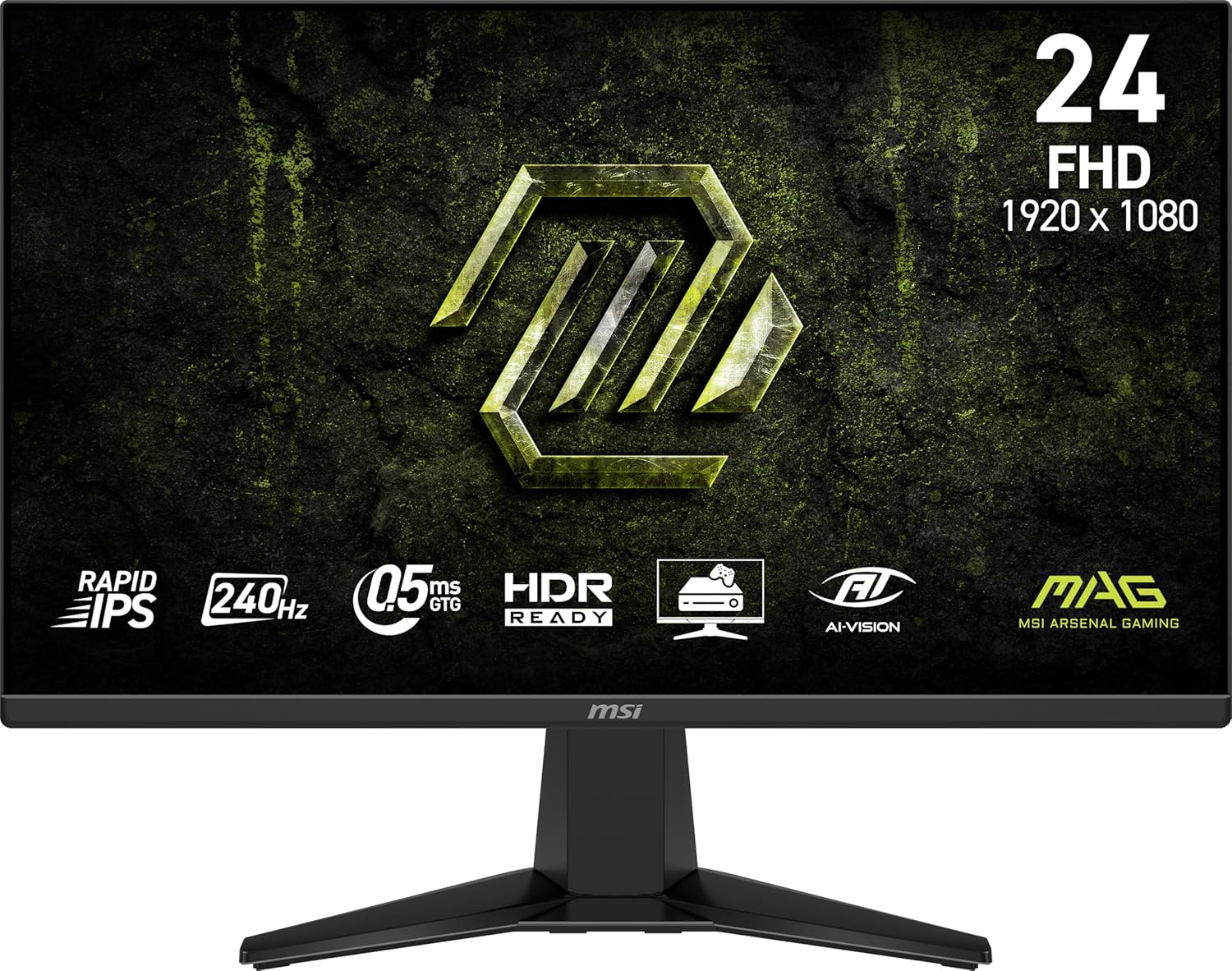
MSI's MAG 245F utilizes a "Rapid IPS" panel to match the 0.5ms response times of its competitors while boasting a very high dynamic contrast ratio. Its 4-side slim bezel design makes it an excellent candidate for multi-monitor setups, and it includes MSI's AI Vision enhancements for improved visibility in dark in-game corners.
| Component | Specification |
|---|---|
| Panel Type | Rapid IPS (Matte Finish) |
| Resolution | 1920 x 1080 (FHD) |
| Refresh Rate | 240Hz |
| Response Time | 0.5ms |
| Adaptive Sync | AMD FreeSync Premium |
View on Amazon
3. Dell SE2426HG (23.8-Inch)
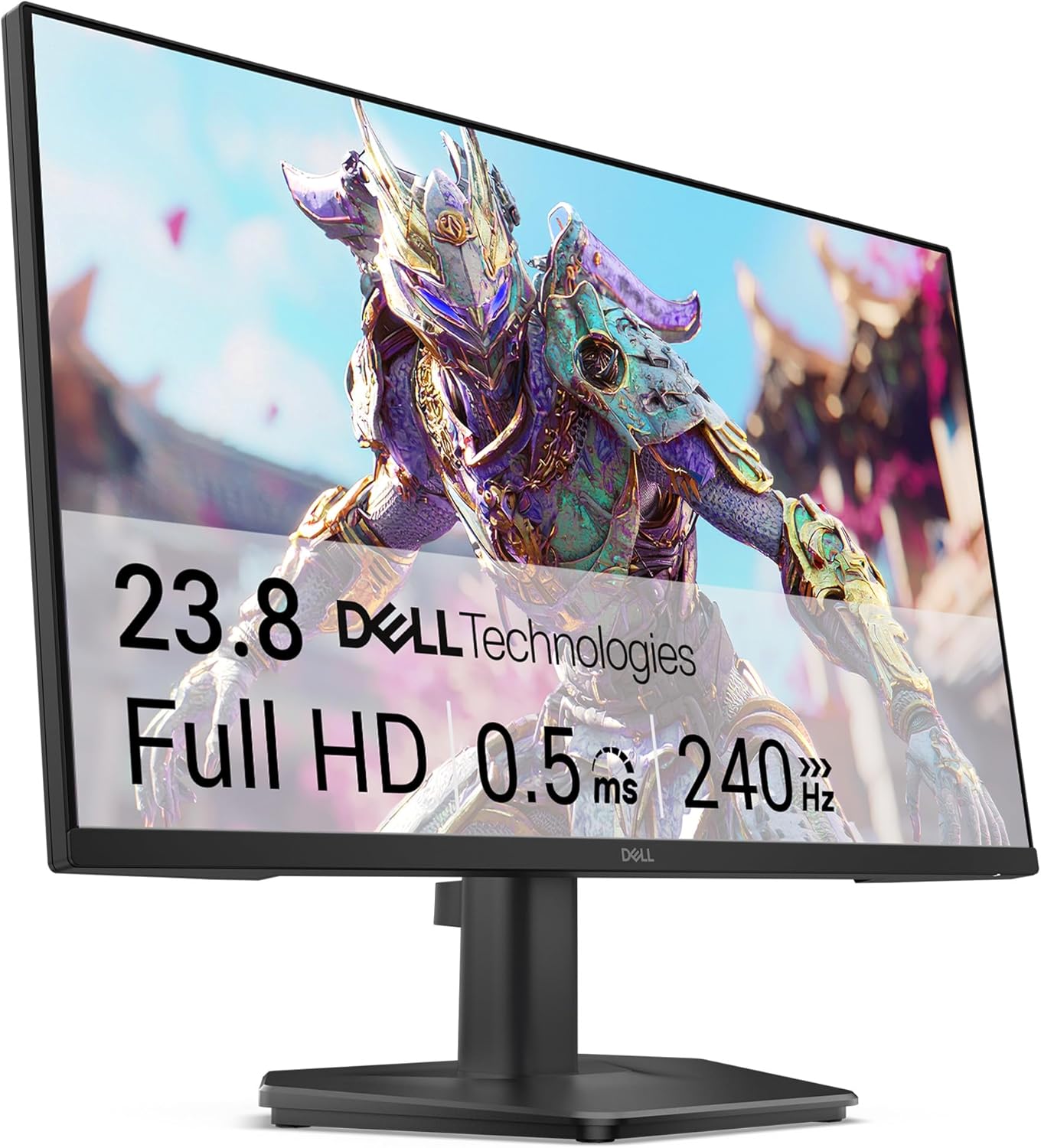
Dell brings its reliable build quality to the 240Hz space with this slightly more compact 23.8-inch display. While it features a great IPS panel with 99% sRGB color gamut and TÜV 3-Star eye certification, competitive gamers should note its listed 5ms response time, which is slightly slower on paper than the other hyper-fast monitors on this list.
| Component | Specification |
|---|---|
| Panel Type | IPS (Matte Finish) |
| Resolution | 1920 x 1080 (FHD) |
| Refresh Rate | 240Hz |
| Response Time | 5ms |
| Adaptive Sync | AMD FreeSync Premium |
View on Amazon
4. ASUS TUF Gaming VG249QM5A (24-Inch)
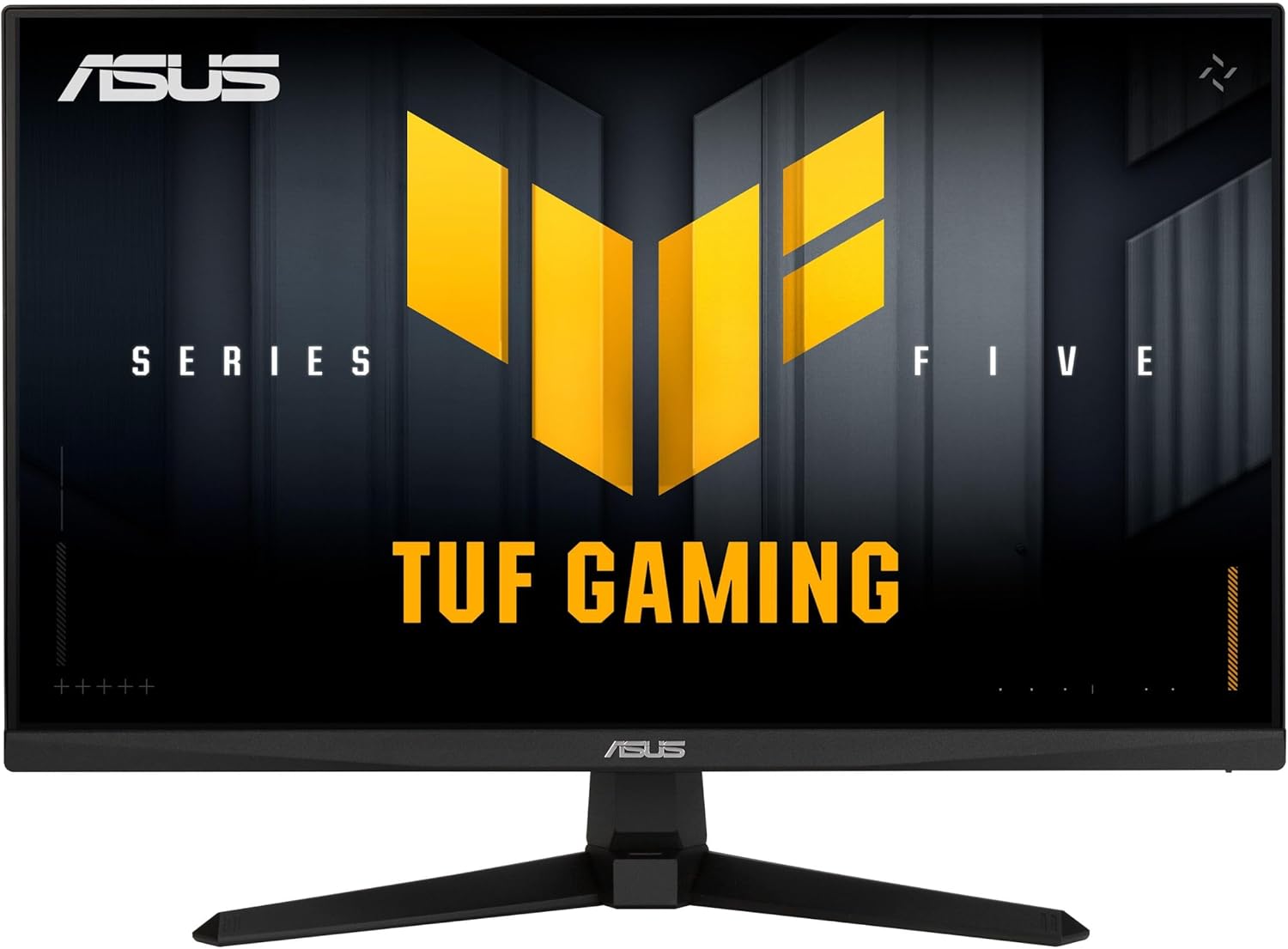
ASUS's TUF lineup is famous for punching above its weight class, and this monitor boasts the fastest listed response time on the list at a staggering 0.3ms. Paired with ASUS’s Extreme Low Motion Blur (ELMB) Sync, this monitor is purpose-built to eliminate motion blur and tearing in fast-paced competitive titles.
| Component | Specification |
|---|---|
| Panel Type | Fast-IPS (Matte Finish) |
| Resolution | 1920 x 1080 (FHD) |
| Refresh Rate | 240Hz |
| Response Time | 0.3ms |
| Adaptive Sync | AMD FreeSync Premium & NVIDIA G-Sync Compatible |
View on Amazon
5. SAMSUNG Odyssey G4 Series (25-Inch)
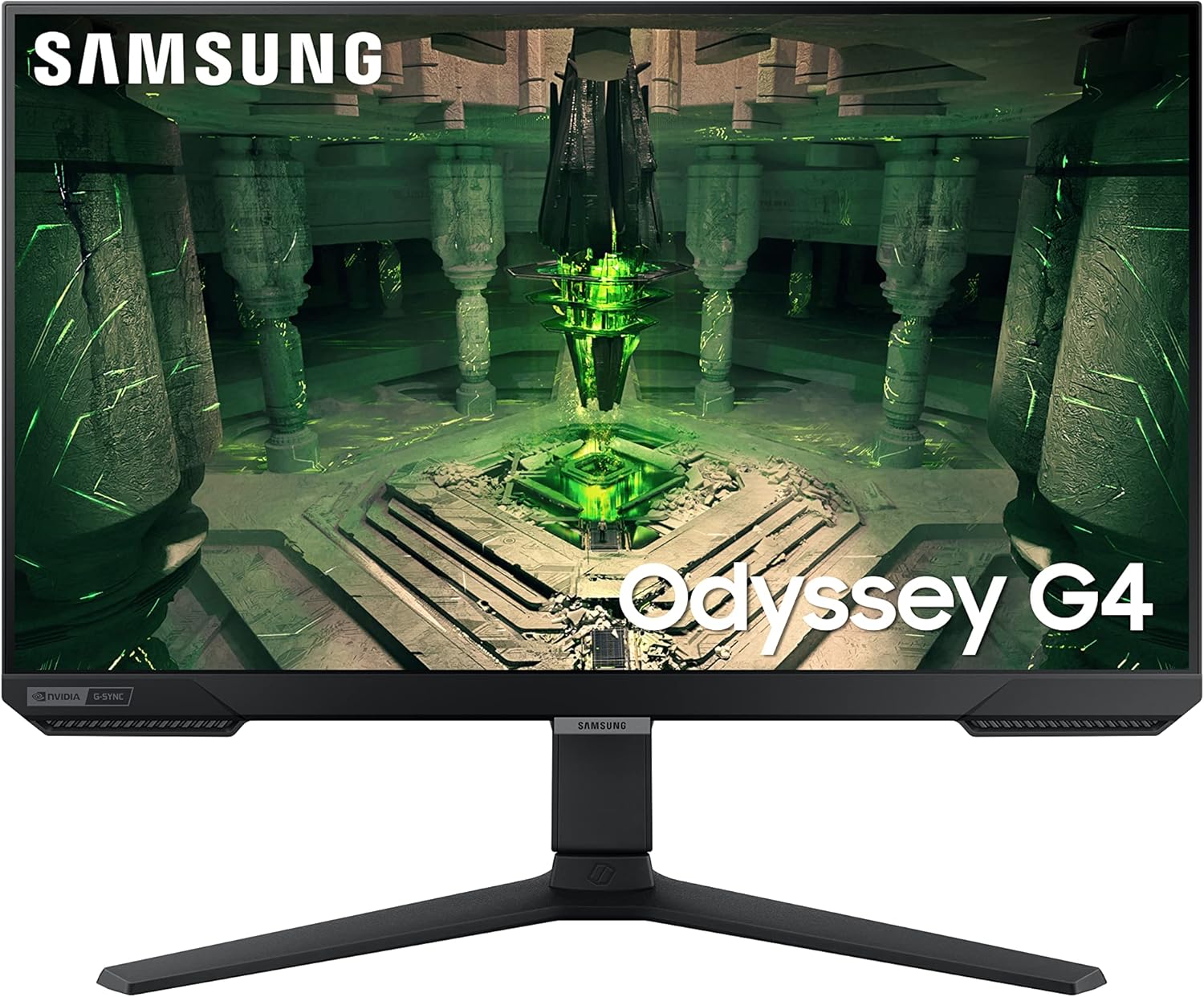
If you want just a tiny bit more screen real estate, the 25-inch Odyssey G4 offers a slightly larger immersive experience without sacrificing speed. It includes HDR10 support and an "Ultrawide Game View" feature that lets you adjust the screen ratio to 21:9 to spot enemies hiding in your peripheral vision.
| Component | Specification |
|---|---|
| Panel Type | IPS (Glossy Finish) |
| Resolution | 1920 x 1080 (FHD) |
| Refresh Rate | 240Hz |
| Response Time | 1ms |
| Adaptive Sync | AMD FreeSync Premium & NVIDIA G-Sync Compatible |
View on Amazon
Optimizing CS2 and Valorant for High Refresh Rates
Purchasing a 240Hz or 300Hz monitor is only the very first step in your journey. If your software and in game settings are not perfectly optimized, your new hardware is entirely wasted. A monitor can only display the frames that the computer generates. If your PC is rendering the game at 120 frames per second, a 240Hz monitor will simply display duplicate frames, providing absolutely no competitive advantage whatsoever.
Professional Resolution Settings: The Stretched Screen Debate
Walk behind the main stage of any major Counter Strike tournament, and you will see that almost every professional player is looking at a distorted, stretched screen. While 1920 by 1080 is the native resolution of these monitors, the competitive standard remains the older aspect ratios, typically set to 1280 by 960.
There are two primary reasons for this strange phenomenon. First, forcing an older square image to stretch across a modern widescreen physically widens the character models on the screen. Enemy heads literally appear fatter and move across the screen visually faster.
While this does not change the actual mathematical hitboxes within the game engine, it creates a massive visual placebo effect. It makes focusing on targets and landing headshots feel significantly easier for your brain to process.
Second, reducing the rendering resolution down to 1280 by 960 drastically lowers the total pixel count your graphics card needs to process. This provides a massive boost to raw frame rates. It ensures the game engine constantly outputs frames much faster than the monitor can even display them.
Gamers must ensure that their display scaling settings in the Nvidia Control Panel or AMD Adrenalin software are set to Full Screen. Ensure that the scaling is performed by the GPU rather than the display to minimize input lag.
In-Game Graphics Settings for Maximum Visibility
For maximum competitive advantage, beautiful visual fidelity must be entirely sacrificed for visual clarity and frame generation. You are not playing a cinematic story game. You are playing a fast paced competitive shooter.
In CS2, almost all advanced video settings should be set to Low. Model and texture detail, shader detail, and particle detail only serve to create visual clutter. This clutter distracts your eyes from spotting enemy silhouettes. High graphical settings also heavily tax the processor, leading to severe frame drops during intense utility executes involving multiple smoke grenades and molotovs.
There is one critical exception to this rule. Global Shadow Quality in CS2 must be kept on High. The game engine renders dynamic shadows based on ambient map lighting. With shadow quality on High, players can actively see the shadow of an enemy model pushing around a corner before the actual enemy model becomes visible. This provides a massive tactical advantage for pre firing angles. Do not turn shadows off.
Anti aliasing is highly subjective among professional players. Disabling it entirely provides the absolute maximum frame rate, but it causes the edges of walls and boxes to shimmer and pixelate. Some players find this highly distracting when holding long distance angles with a sniper rifle. Setting Multi Sample Anti Aliasing to 2x or 4x provides a fantastic middle ground, smoothing out jagged edges without heavily impacting your system performance.
Nvidia Reflex is an absolute necessity and must be enabled in the video settings menu of both CS2 and Valorant. Reflex actively bypasses the traditional render queue. It ensures the CPU submits work to the GPU exactly when it is ready, stripping away precious milliseconds of overall system latency. Always leave it on.
Ergonomics and Setup Considerations
Physical setup is a frequently ignored aspect of competitive gaming. A player can have the fastest monitor in the entire world, but if they are sitting improperly at their desk, their mechanics will suffer immensely.
Many of the budget monitors discussed in this report cut manufacturing costs by including terrible stands. Monitors like the MSI lack height adjustment entirely. A monitor should sit with the top bezel roughly at your eye level. This allows the player to look slightly downward into the center of the screen without straining their neck muscles over a long gaming session.
Investing in a gas spring VESA desk mount is highly recommended for any serious player. These mounts clamp directly to the back of your desk and allow the monitor to be positioned perfectly in three dimensional space.
This also frees up highly valuable desk space below the monitor. It allows players who use low mouse sensitivities to sweep their arm across a massive mousepad without slamming their hand into a bulky plastic monitor base. Professional players often pull their monitors incredibly close to their faces to maximize focus and visual clarity, something that is practically impossible to do comfortably with a standard factory stand.
Fast IPS versus TN Panels
Historically, Twisted Nematic panels completely ruled the esports domain. You probably know them as TN panels. They offered terrible viewing angles and completely washed out colors, but they boasted the fastest pixel response times available on the market. Professional players gladly sacrificed visual quality for the sheer speed of a Twisted Nematic display.
In 2026, the landscape has shifted entirely. Fast In Plane Switching technology, known as Fast IPS, has evolved to the point where it matches the speed of legacy Twisted Nematic panels. It accomplishes this while delivering vastly superior color reproduction and beautiful contrast.
Fast IPS panels use advanced liquid crystal formulas and aggressive voltage overdrive to transition pixels rapidly. Today, buying a Twisted Nematic panel under 300 dollars is largely unnecessary. The only exception is if you are specifically looking at legacy BenQ Zowie models used in older professional tournaments, but even those are being phased out.
You should completely avoid Vertical Alignment panels for competitive shooters. These are known as VA panels. While Vertical Alignment panels offer incredible contrast ratios and very deep blacks, they suffer from a severe physical limitation known as dark level smearing.
When transitioning from dark shades to light shades, the liquid crystals in a Vertical Alignment panel move far too slowly. This creates a messy, blurred trail behind moving objects. This smearing makes tracking enemies in dark areas of maps like Mirage or Split incredibly difficult. Never buy a VA panel for competitive gaming.
Final Verdict: Which 240Hz Monitor Should You Choose?
If you want the best overall balance of motion clarity and tuning potential, the ViewSonic XG2431 remains a top-tier choice. For players who want strong features and value, the MSI MAG 245F X24 is an excellent all-rounder. If you are on a tighter budget, the Dell SE2426HG still gives you access to 240Hz gameplay without breaking the bank, even if it sacrifices some speed. Meanwhile, the ASUS TUF VG249QM5A is the go-to option for players chasing the absolute fastest response times, and the Samsung Odyssey G4 offers a slightly larger, more immersive experience with premium features.
Best Gaming Monitor Under $400: High Refresh Rate and Stunning Visuals
Looking for a high-performance gaming monitor without breaking the bank? We review the best gaming monitors under $400 that offer fast refresh rates, low response times, and great color accuracy.
Read article →Best Budget Gaming Mouse 2026 Edition: Find The Perfect Mouse For Your Needs
A deep 2026 buyer’s guide to the best budget gaming mice under $70, covering top sensors, polling rates, switch technology, and the best value picks for competitive FPS.
Read article →
Frequently Asked Questions
Is the jump from 144Hz to 240Hz actually noticeable in game?
Yes, it is noticeable, but it is a classic case of diminishing returns. The initial jump from 60Hz to 144Hz reduces frame times by nearly 10 milliseconds, which feels like you are playing a completely different video game. The subsequent jump from 144Hz to 240Hz reduces frame times by roughly 2.8 milliseconds. Highly competitive players will immediately notice smoother tracking and much snappier mouse inputs, but casual players might find the difference subtle at first. The primary advantage is the massive reduction in total system latency, not just the visual smoothness.
Do I need to use G Sync or FreeSync for competitive shooters?
Most professional esports players actually disable all forms of variable refresh rate technologies, including G Sync and FreeSync. Adaptive sync technologies synchronize your monitor refresh rate to the exact frame rate of your game. While this completely eliminates ugly screen tearing, it can occasionally introduce marginal amounts of input lag. In games like CS2, the goal is to uncap the frame rate entirely so the game runs at 400 or 500 frames per second, vastly exceeding the monitor refresh rate. Screen tearing at these extreme speeds is practically invisible to the human eye anyway.
Why do pros play on 24 inch screens instead of larger 27 inch screens?
A 24 or 24.5 inch screen is widely considered the perfect size for human peripheral vision when sitting at a standard desk viewing distance. Players can actively monitor the minimap in the corner of the screen while keeping their primary focus perfectly locked on the central crosshair. They can do this without physically turning their head. Moving to a massive 27 inch screen requires much more physical eye movement, which can cause a player to miss a crucial visual cue at the extreme edge of their vision.
What is the exact difference between GTG and MPRT response times?
GTG stands for Gray to Gray. It measures the physical time it takes for a liquid crystal to transition from one shade of gray to another shade of gray. This is a pure measure of the panel speed. MPRT stands for Moving Picture Response Time. It measures the amount of time a pixel remains visibly illuminated to your eye. Monitors often achieve a one millisecond MPRT rating by using aggressive backlight strobing to flash the image quickly, even if the physical GTG transition is much slower. Both numbers are heavily manipulated by corporate marketing departments, so third party hardware reviews are the only reliable source of true response times.
Can I run a 240Hz monitor over a standard HDMI cable?
It depends entirely on the specific HDMI version of both your monitor port and your graphics card port. HDMI version 2.0 has the bandwidth to run 1080p at 240Hz, but older HDMI 1.4 ports will strictly cap out at 120Hz or 144Hz. To avoid frustrating bandwidth bottlenecks and to ensure perfect compatibility with adaptive sync features on your PC, it is always highly recommended to use a standard DisplayPort cable for high refresh rate gaming monitors.
You May Also Like
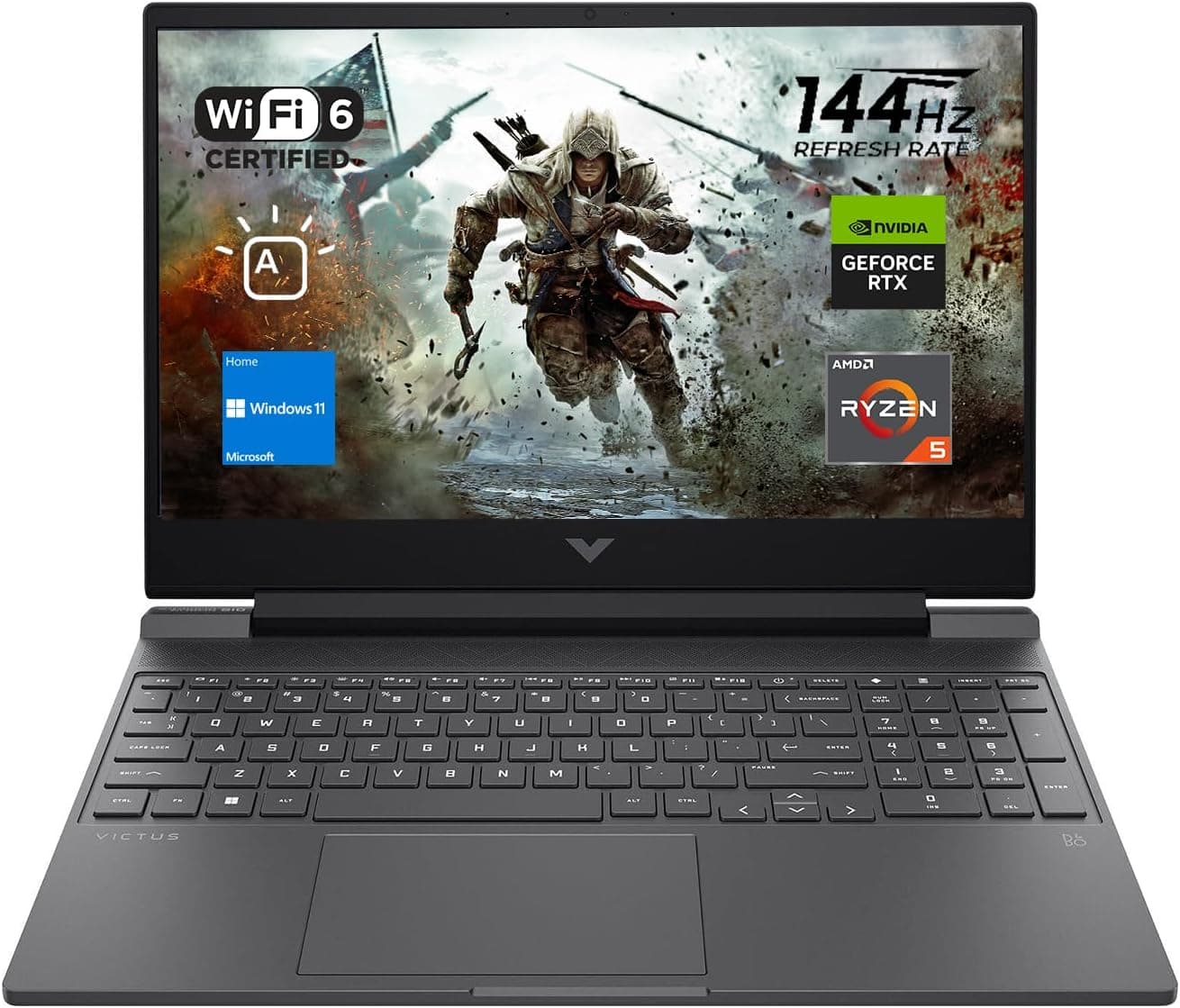
Best Gaming Laptops for College Students Under $1000 in 2026
Buying a gaming laptop for college is different from buying one purely for gaming. A college laptop needs to handle lectures, assignments, research, video calls, and productivity software during the day while still delivering solid gaming performance at night.

Best Games on Steam to Play While Working From Home
Best games on Steam to play while working from home, from cozy builders to smart card games that fit short breaks, easy pauses, and low stress sessions.
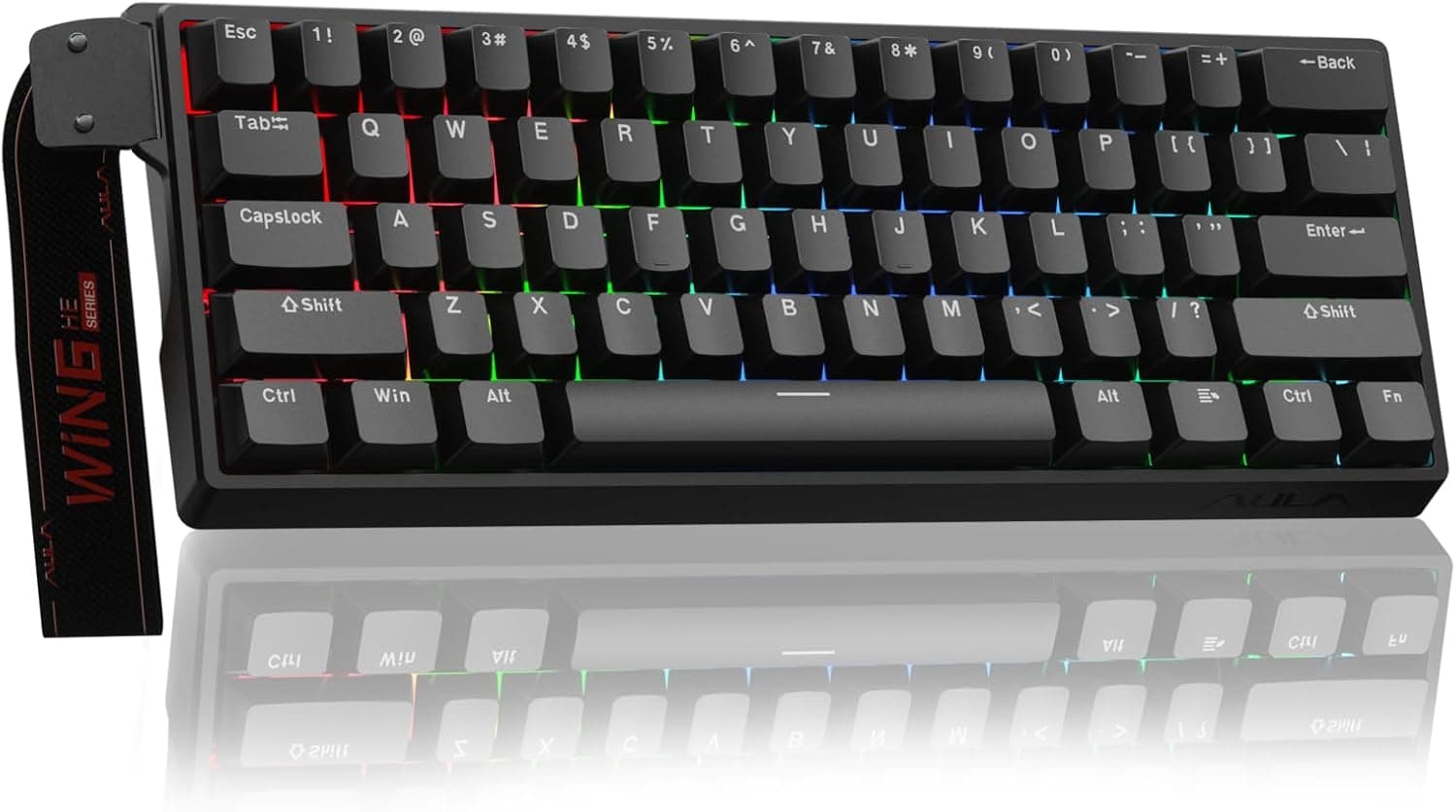
Best Budget Hall Effect Keyboards in 2026 (Under $50)
Discover the best budget Hall Effect keyboards under fifty dollars in 2026. Read our honest, in depth analysis of performance, build quality, and software features of the top six magnetic switch boards.